

Overview
SpecLink Cloud contains symbols and colors to provide the user with visual cues and notifications of additional tools or information.
The article is meant to serve as a quick reference for the symbols and colors found in SpecLink Cloud. For each of the items listed below, you'll find images depicting the color or symbol and descriptions or definitions of the item. Each has a link to an expanded article that will provide in-depth information.
- Project Type Icons
- Section Catalog Abbreviations
- Sequence Number Color Coding
- Text Colors and Symbols
- Fill in the Blank Colors
- Origin Column Symbols
- Comment Colors
- Link Colors
- Link Types
- Track Changes
Project Type Icons
The Project Privacy area allows for the selection of a project type. All projects are set to Public by default. There are three project type options:
| Public: All team members can see and access this project. | |
| Private: All team members can see this project, but only those granted access by the Owner or a System Manager can open the project. | |
| Hidden: Only team member granted access by the Owner or a System Manager can see or open this project. |
For more detailed information, see Project Sharing / Privacy.
Section Catalog Abbreviations
When subscribing to SpecLink Cloud, every account has choices of which catalog entitlements in which they wish to be included. These catalogs can be found in the Catalog column of the Sections list, indicated by various shortened letters.
| Catalog Abbreviation | Full Name |
| A | Architectural |
| CE | Civil Engineering |
| DC |
Design Criteria |
| F | Free |
| LA | Landscape |
| ME | Mechanical/Electrical |
| SE | Structural Engineering |
| TB | The Basic |
| WW | Waste Water |
For more detailed information, see Collaboration.
Sequence Number Color Coding
The sequence numbers of the section are color coded so the user will know when a paragraph is inactive, has been activated by a user, has been activated by linking, or has been deactivated.
| Light grey sequence numbers are inactive. Paragraphs in this state will not print in a document. | |
| White sequence numbers with a blue background have been activated by a user. These paragraphs will print in a document. | |
| Black sequence numbers have been activated by linking. These sequence numbers will always have a green link indicator and will print in a document. | |
| Light grey sequence numbers with a blue dot are inactive and will not print in a document. The blue dot indicates that a user has attempted to activate this paragraph but this paragraph's parent level is not yet active. | |
| Sequence numbers that are red, contain a strikethrough and a white "X" in a red circle have been deactivated by a user. This is accomplished by right-clicking on the sequence and selecting to "Exclude and Ignore Links". | |
| Sequence numbers that are light grey with faint dots indicate a sequence number tagged as Non-Printing (NP) or Non-Selectable (NS). These sequence number cannot be activated. The dots will also be shown across the entire paragraph text. |
See Activating Paragraphs for more detailed information.
Text Colors and Symbols
The following enhanced text options are color coded and have an associated symbol:
- Choice Fields
- Reference Standard Citations and Titles
- Section ID's and Titles
- Global Terms
- Units of Measurement
- Table of Enhanced Text Visual Indicators
Text may be color coded for the following reasons:
- Let the user know that there are more options in a choice field.
- Highlight Section ID's & Title's to the user.
- Highlight that Reference Standard Citations are hyperlinks opening a browser, or a new tab of the current browser, to a location on the web where the standard can be acquired.
- Highlight Reference Standard Titles to the user.
- Highlight Global Terms to the user.
Choice Fields:
- Choice Fields appear in blue text and are paired with a dropdown arrow icon
.
For more detailed information, see Choice Field Basics.
Reference Standard Citations and Titles:
- Reference Standard Citations and Titles appear in green text and are paired with a book icon
.
For more detailed information, see Reference Standard Basics.
Section ID's & Titles:
-
Section Titles and Section ID’s appear in green text and are paired with a pound sign or hashtag icon
.
For more detailed information, see Basic Editing.
Global Terms:
-
Global Terms appear in purple text and are paired with a globe icon
.
For more detailed information, see Global Terms.
Units of Measure
- Units of Measure appear in green text and are paired with a ruler icon
.
Enhanced Text Visual Indicators
When the enhanced text colors are not easy to distinguish, SpecLink Cloud also has a visual indicator to go alongside the Enhanced Text options. The indicators will be as follows:
Fill in the Blank Colors
RIB Master Content has 3 colors indicating fill in the blank options. The colors are meant not only to distinguish the different types of fill in the blanks, but also to assist in how to best use them.
Blue Fill in the Blank is a Choice Field
Single click to access the choice field options:
Double click to access the text entry box. When hovering over the fill in the blank, a smart tip will appear guiding you to this action.
Hover:
Double Click:
Green Fill in the Blank is a Unit of Measure
Double click to access the text entry box. When hovering over the fill in the blank, a smart tip will appear guiding you to this action.
Hover:
Double Click:
Red Fill in the Blank is a Standalone Entry Box
Click once to access the standalone text entry box shown below:
For more detailed information, see Fill in the Blanks.
Origin Column Symbols
The Origin "O" column of a section displays a letter or symbol depending on if a paragraph has been edited or created by a user.
- M*: Master Modified Paragraph
- M: Master Paragraph with hidden modification
- U: User Paragraph
Paragraphs that have no letter or symbol are master content text paragraphs.
For more detailed information, see Basic Editing.
Comment Colors
Comments have different colors associated with their assigned priority level. The priority level can be adjusted by clicking the oval in the top left of the comment box, and the oval color will reflect the current priority.
- Critical: Red
- High: Orange
- Medium: Yellow
- Blue: Low
- Not Set: Grey
For more information, see Commenting in Speclink Cloud.
Link Colors
Links appear in the section as vertical bars positioned next to the sequence number of a paragraph. Links are green, yellow, or red like a traffic light.
- Green: a "Yes" or "Activate" link - Activated by linking
- Yellow: "Suggest" link - For review based on linked paragraph(s)
- Red: "No" or "Deactivate" link - Warning of conflict if activated
For more detailed information, please see Linking Basics.
Link Types
Link types appear when the user is reviewing the links of a paragraph, or when links are being created or edited. Link types are Paragraph, Choice, and Cross-Section.
- P: Paragraph Link
- C: Choice Link
- CS: Cross Section Link
Within the Choice Link type, there are multiple options that a Choice Link could become depending on what the choice field is activating, suggesting, or deactivating.
- C2P: Choice to Paragraph Link
- C2C: Choice to Choice Link
- P2C: Paragraph to Choice Link
For more detailed information, please see Linking Basics.
Track Changes
Text Edits, Additions, and Deletions
When Track Changes is enabled, text edits, additions, and deletions will appear in red.
Additions will be underlined and deletions will appear with a strike-through as shown below.
Along with the red text, underlined, and strike-through attributes, a black line noting that a change is being tracked will appear between the sequence number and the paragraph numbering. In the image below the notification appears between sequence 0214 / H and 0215 / I.
Sequence Selection & Activation
Track Changes allows users to track selection and state changes of content when Track Changes is enabled. Selection will be visibly indicated now, with blue shading and a right-hand color bar.
For more detailed information, please see Track Changes.
Comments
7 comments
What is indicated by the yellow and green vertical bars to the right of the sequence numbers in the last screenshot?
Hi,
The green, yellow (and possibly red) vertical bars located to the right on some sequence numbers indicate linking. For more detailed information, please see Linking Basics.https://bsdinc.zendesk.com/hc/en-us/articles/360013237912
When a section is open, what does the N represent (N, O, #) and what does the small blue folder next to a paragraph mean?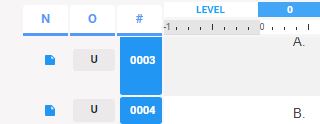
I believe it is as follows:
N = Note (if there is a note associated with the line, and if so - what type of note it is)
O = Owner / Origin (aka who the author of the content is)
# = Sequence Number
Hi Tim - The "N" is the Notes column and the blue notecard denotes a user-entered project note. Orange notecards are the RIB Content Team's notes to the specifier.
What does this yellow bar here mean?
This is in Section 08 1113: Why are the section numbers Red? The project's Door Hardware section is a USR section of same name and number, but the Glazing section is RIB's.
Article is closed for comments.