

Overview
Projects can be renamed from the project's Summary Info area. Be aware that renaming a project is a default System Manager role permission. Your organization may have altered the role permission.
Learn more about User Role Permissions.
Steps to Rename a Project
Follow the steps below to rename an existing project.
- From the Projects List, click the name of the project.
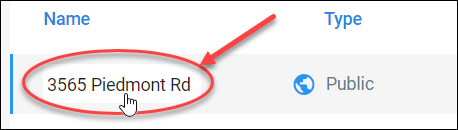
- Above the Sections list, click Summary Info.

- From the Summary Info area, locate the Project Name field of the Project Info box.
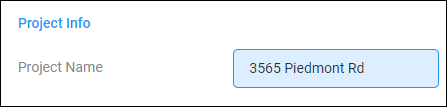
- Here, you can click in and edit the Project Name field to match your needs. Review the table of Unsupported Project Name Characters below.
Be aware that renaming a project is a default System Manager role permission. Learn more about User Role Permissions.
Unsupported Project Name Characters
Please review the table below for project name unsupported characters.
|
Characters Not Support in Project Name |
|
|
Asterisk |
* |
|
Plus Sign |
+ |
|
Tilde |
~ |
|
Left Bracket |
[ |
|
Right Bracket |
] |
|
Vertical Bar |
| |
|
Backslash |
\ |
|
Forward Slash |
/ |
|
Colon |
: |
|
Quote |
“ |
|
Less Than |
< |
|
Greater Than |
> |
|
Question Mark |
? |
|
Long Dash (em, en dash) |
Generated by software programs |
Comments
2 comments
We copied the spec file from another project that would require similar spec. We changed the project name and project information. When we Print the specs the old project name appears in the header field. I cannot find a way to change the project name in the header field.
BJ,
Thanks! I am not able to reproduce this, but I did notice that if the Project Name was manually entered into the Header / Footer within the project being copied, that text will come through to the new project. That is working as designed. Please check that the project being copied is utilizing the Project Name Global Term (green text) instead of manually entered text (black text). Please reach out to Support if this is not the case on your end.
Thanks!
Gary Christensen
Article is closed for comments.